Write and edit your course by asking
A course assistant now sits inside the editor. It drafts lessons, rewrites the pages you point at and adds images — and nothing changes until you accept.
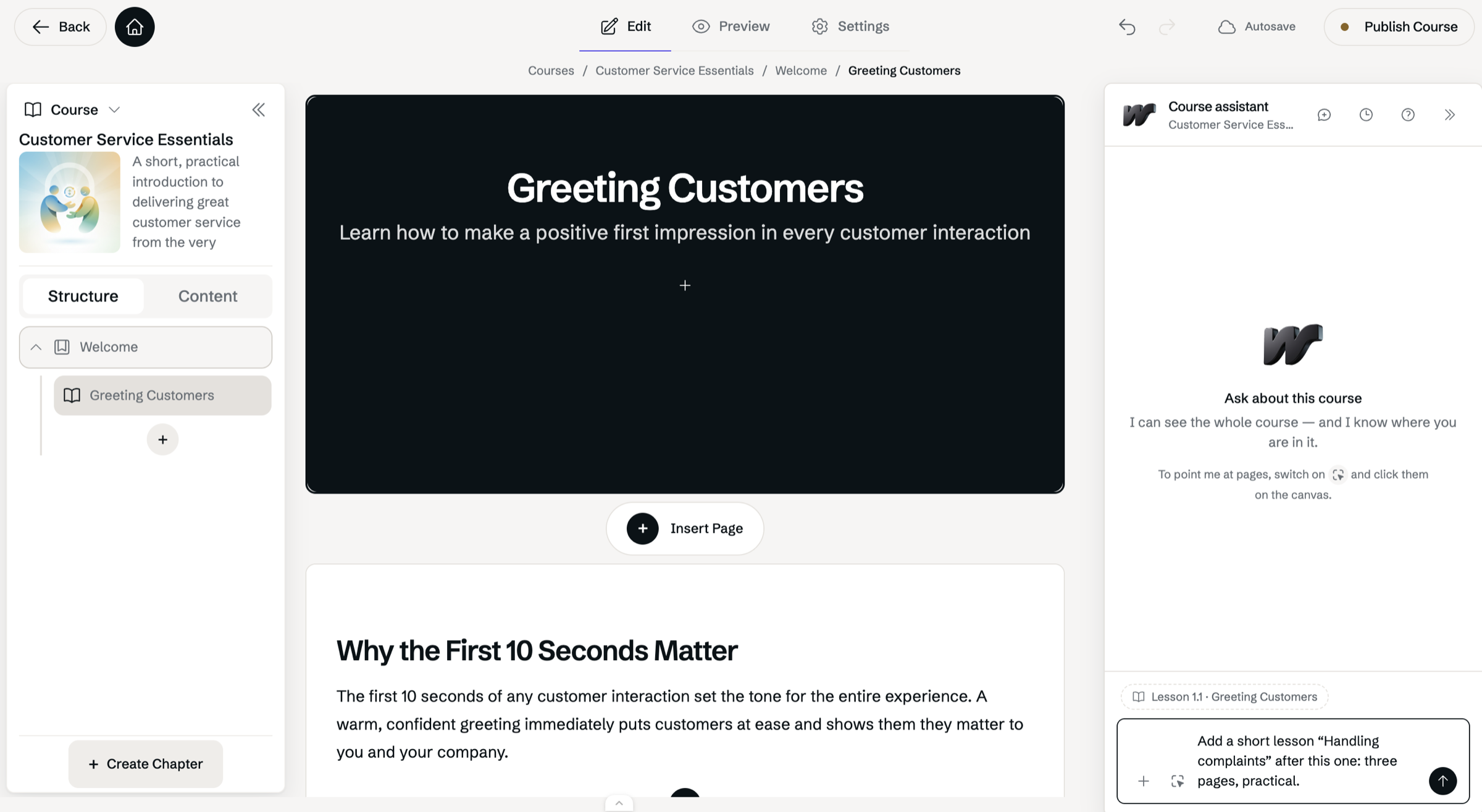
Open Chat about this course from the editor. The assistant sees the whole course and knows which lesson you have open.
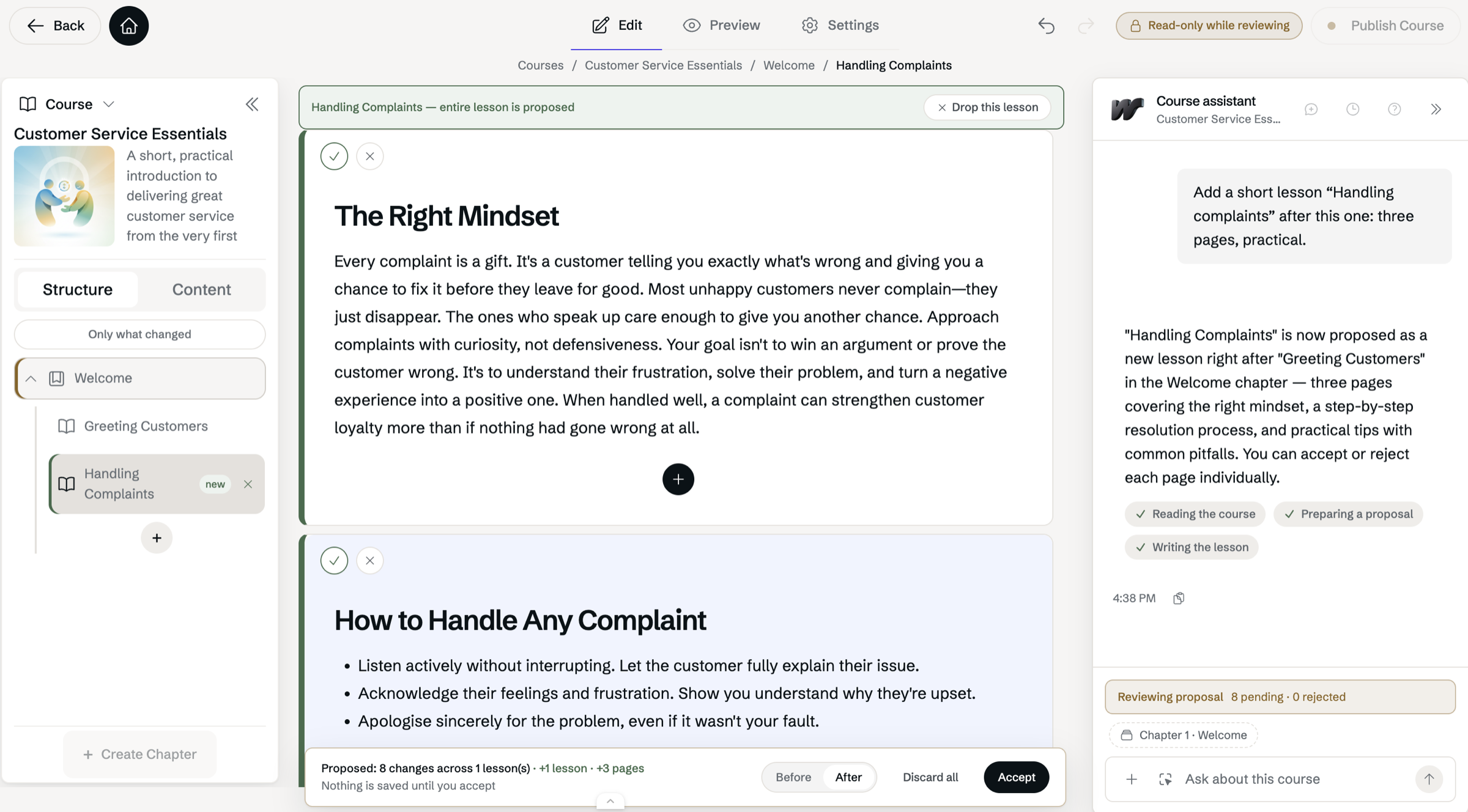
Every change arrives as a proposal, shown right where it would land. Nothing is saved until you accept.
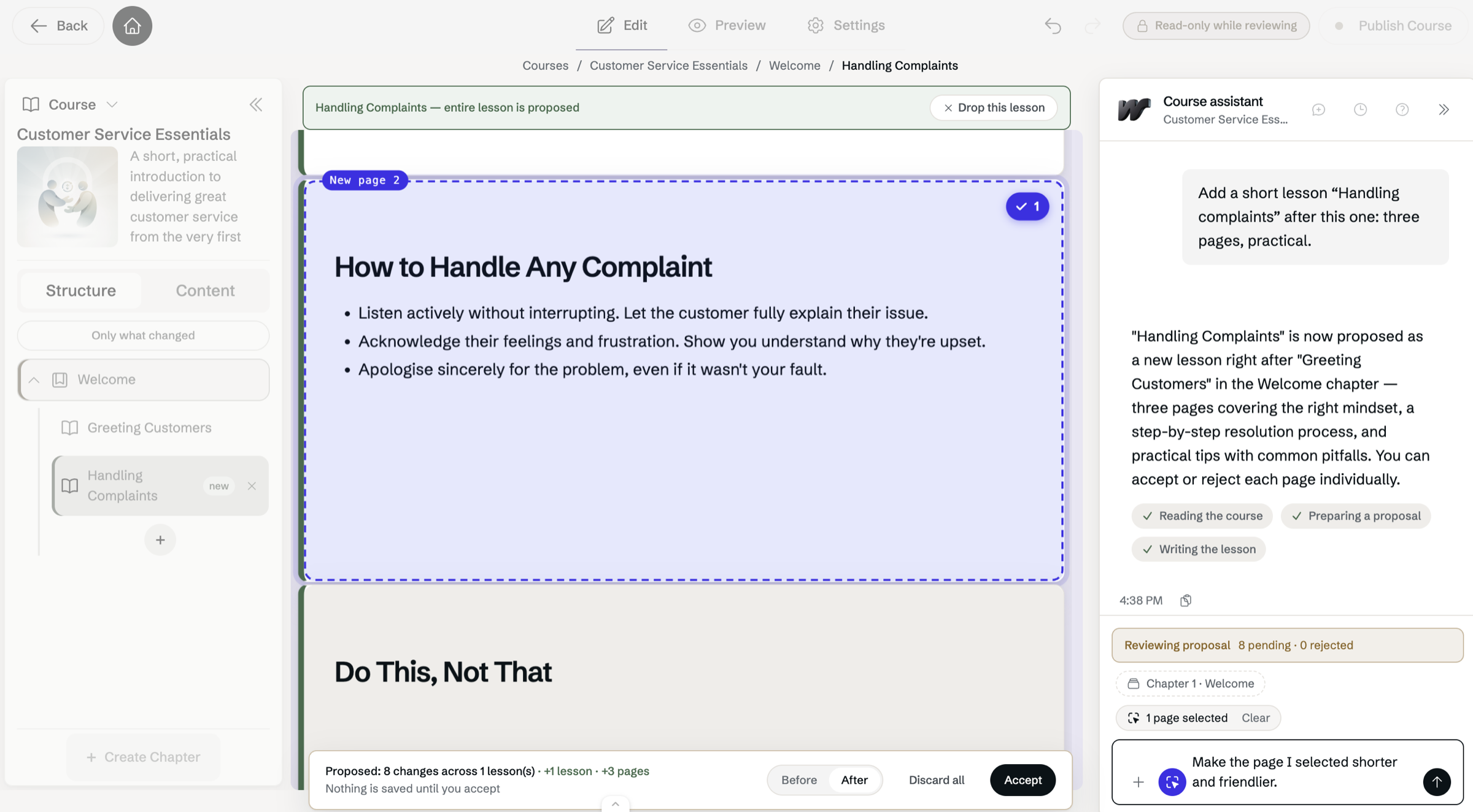
Switch on Select pages and click a page to tell the assistant exactly what to work on.
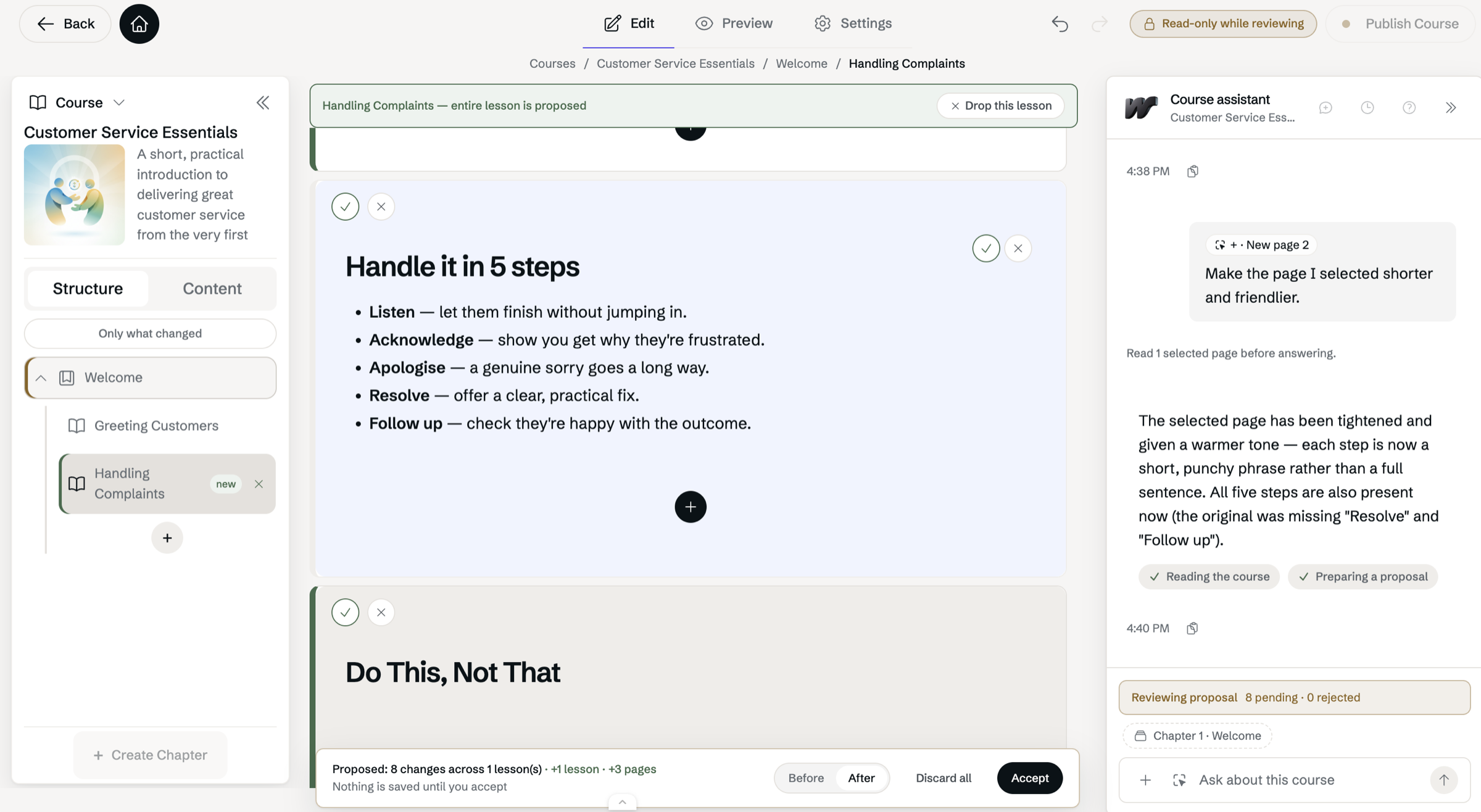
A follow-up revises the proposal in place. Keep a part with ✓ or leave it out with ✗.
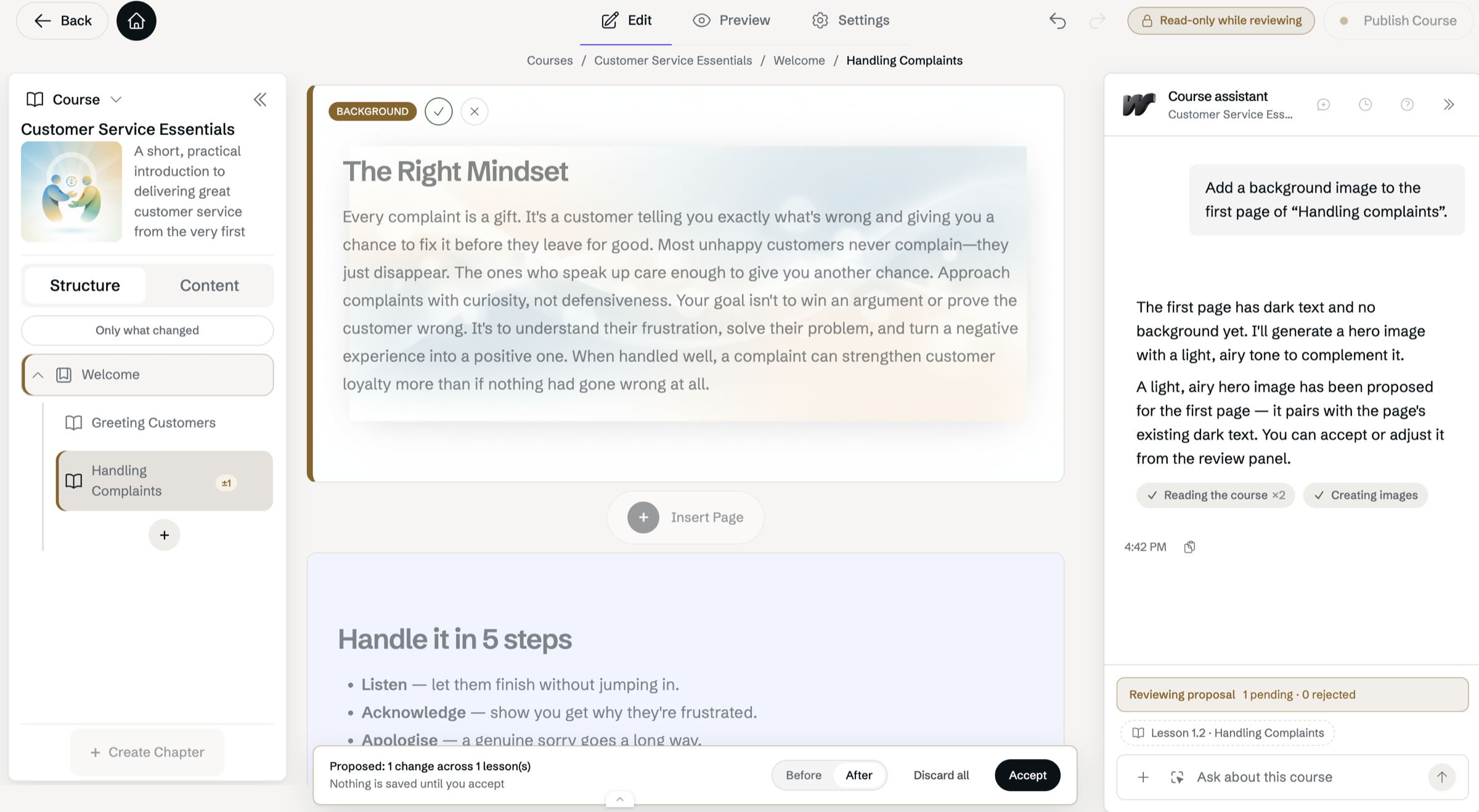
Images are proposed too, and reviewed like any other change.
Open a course in the editor and press Chat about this course. The assistant already knows the course and the lesson you are on, so you can ask in plain language: add a lesson to this chapter, make this page shorter and friendlier, rename these lessons, put a background image on the first page. To point it at particular pages, switch on Select pages and click them on the canvas.
Whatever it suggests comes back as a proposal you review in place. The editor shows exactly what would change, with Before and After to compare, a ✓ or ✗ on every page and block, and Accept or Discard all at the bottom. Nothing is saved until you decide, and anything the assistant changed can be undone. The first time you open it, Show me around walks you through a real proposal on your own course.
The assistant works one chapter at a time. For quizzes, use Generate with AI in the assessment editor; to start a whole new course, ask the Nadifor AI assistant (⌘K). The course assistant must be enabled in your workspace.